
Users & Access
RBAC - Managing Team Members and User Access in CloudCapsule
Cloud Capsule's RBAC lets you control which team members can log in, which tenants they can access, and what actions they can perform. This article covers login access, adding users, creating groups, and managing permissions.
Step 1: Configure User Login Access
- Navigate to Admin in the left sidebar and select the Users tab.
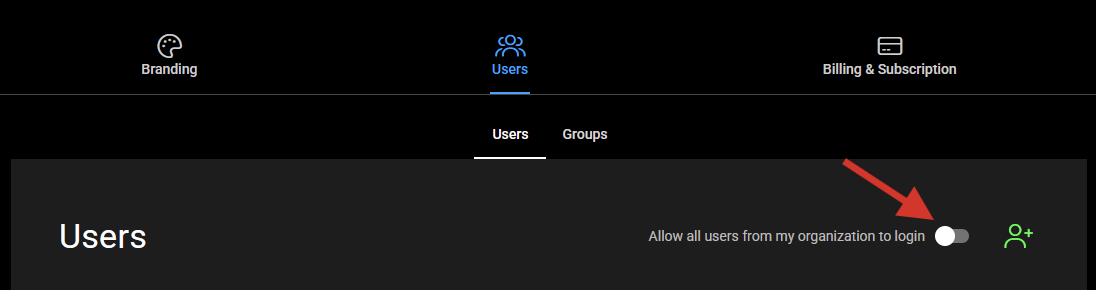
- Use the Allow all users from my organization to login toggle to set your preferred access mode:
- On: Any user from your organization's Microsoft 365 tenant can log in to Cloud Capsule.
- Off: Only users you manually add will have access. Use this setting if you want to control access on a per-user basis.
Step 2: Add a User Manually
If the organization-wide toggle is off, you will need to add users individually.
- Navigate to Admin > Users.
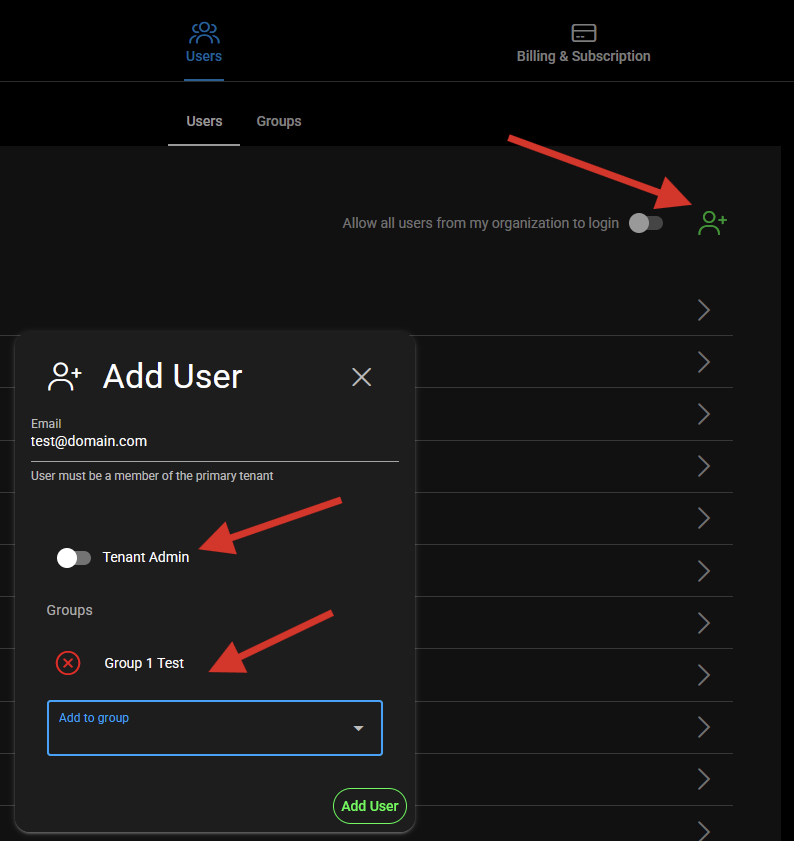
- Click the Add User icon.
- Enter the user's email address.
- Configure their access level:
- Tenant Admin on: The user has full access to all tenants and admin functions.
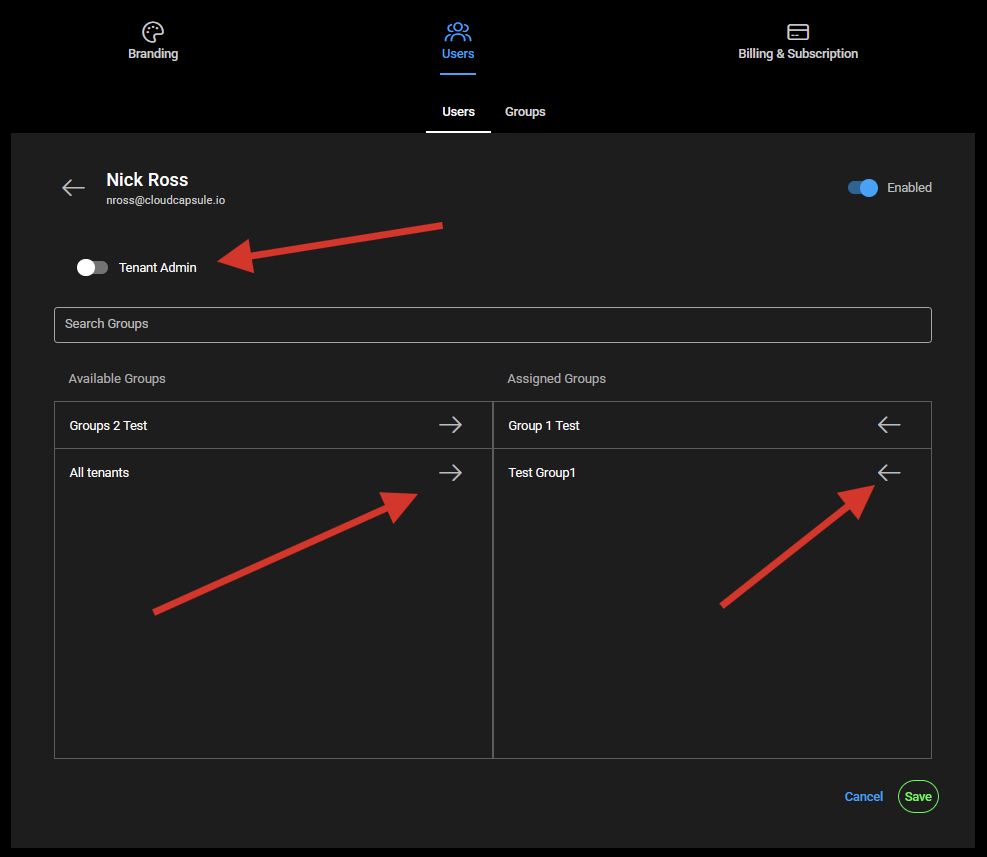
- Tenant Admin off: The user can only access tenants through assigned groups. Toggle this off to expand the group assignment options.
- If Tenant Admin is off, select the groups you want the user to belong to using the Add to group dropdown.
- Click Add User to save.
Step 3: Create Groups
Groups allow you to define which tenants a set of users can access and what they can do within those tenants.
- Navigate to Admin > Users and select the Groups sub-tab.
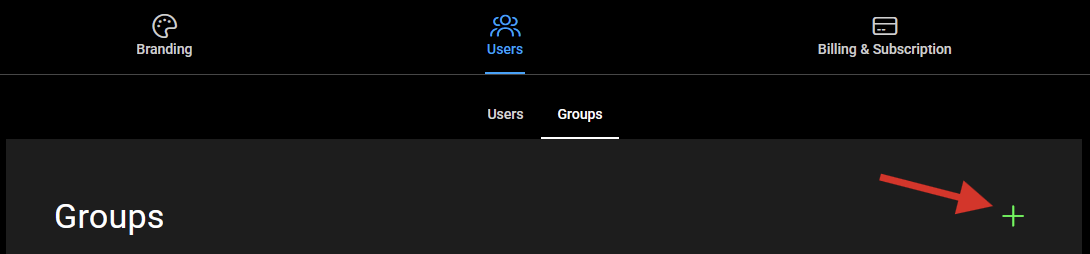
- Click the + button in the upper-right corner to create a new group.
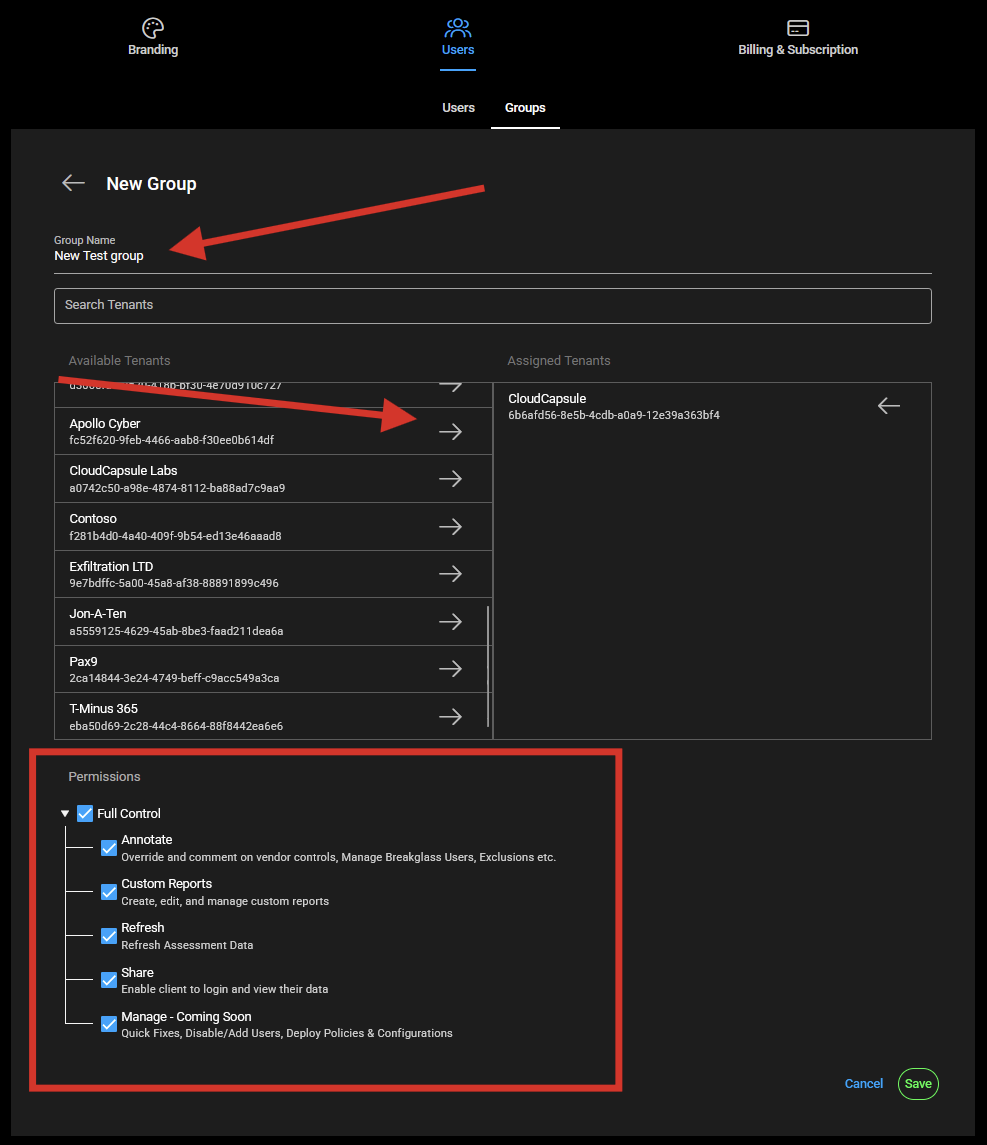
- Enter a descriptive Group Name.
- Assign tenants to the group by moving them from Available Tenants to Assigned Tenants. Users in this group will only see the tenants listed under Assigned Tenants.
- Set permissions for the group. You can combine permissions as needed:
- Full Control: All actions within assigned tenants, except access to the Admin page.
- Annotate: Add comments, override vendor controls, and manage Breakglass Users and exclusions.
- Refresh: Refresh assessment data for assigned tenants.
- Share: Enable client logins via shareable links.
- Manage (Coming Soon): Quick fixes, disable/add users, and deploy policies and configurations.
- Click Save when finished.
To edit or delete a group, click into it from the Groups list, make your changes, or click the red Trash icon to remove it.
Step 4: Assign Groups to Users
- Navigate to Admin > Users and select the user you want to configure.
- Confirm the Tenant Admin toggle is off. Groups cannot be assigned while Tenant Admin is enabled.
- Use the Available Groups and Assigned Groups buckets to move groups into the user's assigned access. A user can belong to multiple groups.
- To remove a group from a user, move it back to Available Groups.
- Click Save.
Managing Existing Users
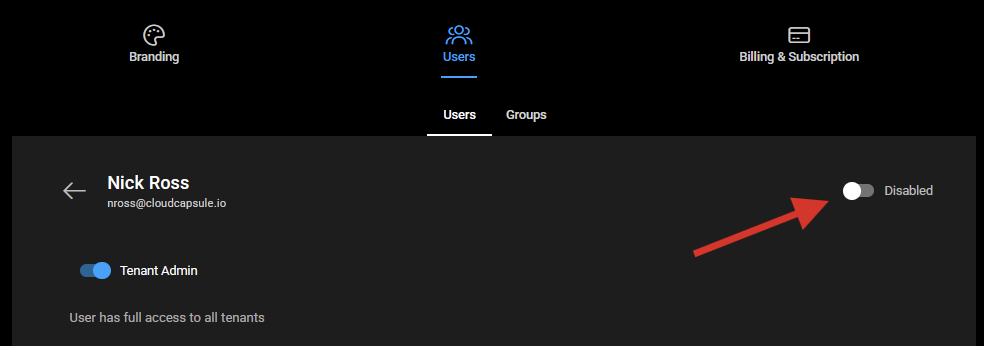
To enable or disable a user's access at any time:
- Navigate to Admin > Users and select the user.
- Use the Enabled toggle in the top-right of the user detail view to turn their access on or off.
What Users See with RBAC Enabled
- Users will only see the tenants included in their assigned groups.
- Users will only be able to perform actions that match their group permissions.
- Users without Tenant Admin access will not see the Admin page.
When to Contact Support
If you are experiencing issues adding users or configuring group permissions, please contact support.
Email: support@cloudcapsule.io In-app: Navigate to Support and open a new ticket.