
Troubleshooting, FAQ
How to Connect a Customer Tenant and Troubleshoot Consent Issues
Cloud Capsule connects to Microsoft 365 tenants through an admin consent link, which can be granted directly or sent to the customer's tenant admin. This article covers how to add a new tenant, resolve the AADSTS650052 error, and address permission issues after consent is granted.
How to Connect a Customer Tenant and Troubleshoot Consent Issues
Cloud Capsule connects to your customer Microsoft 365 tenants using an admin consent link. This article walks through how to generate and send a consent link, and covers the most common errors you may encounter during the onboarding process.
How to Add a New Customer Tenant
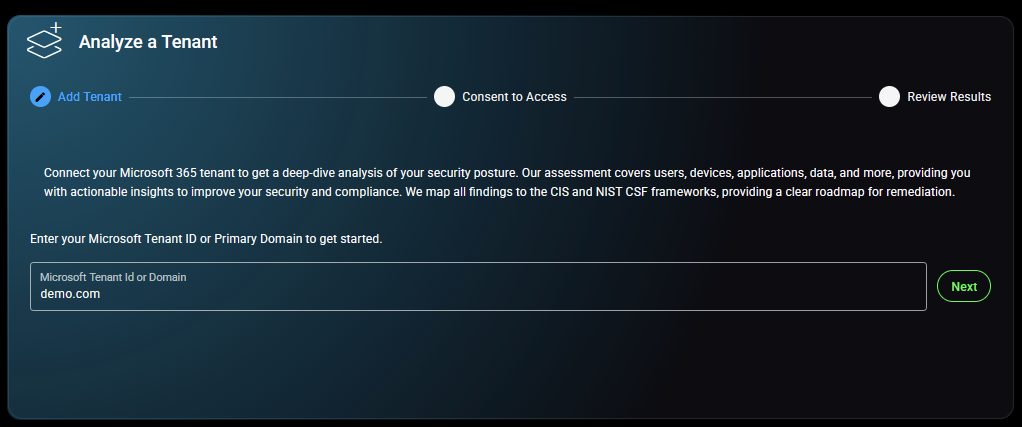
Step 1: Enter the tenant details
- From the Home screen, enter the customer's Microsoft Tenant ID or primary domain name.
- Click Next. Cloud Capsule will move to the consent step.
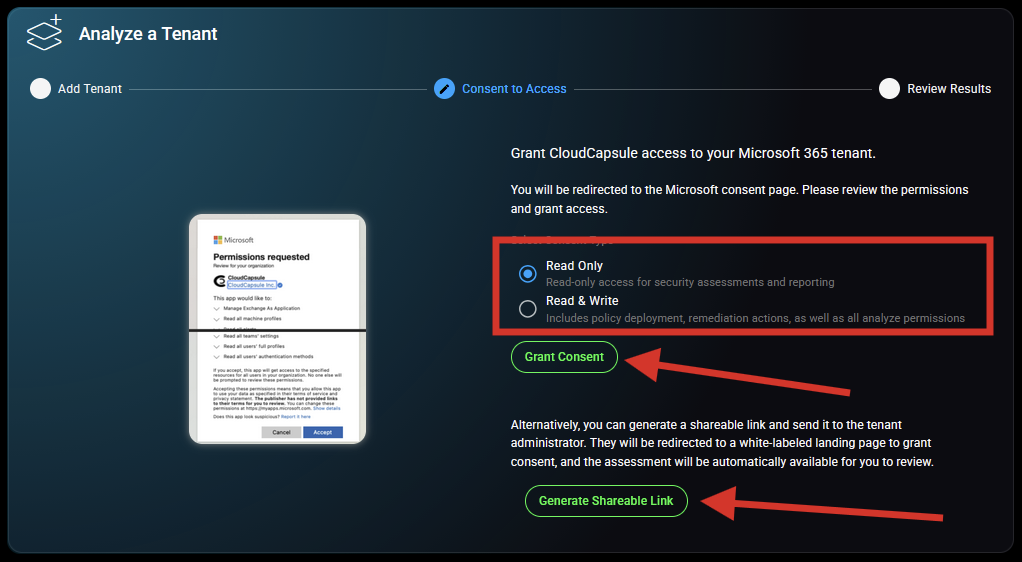
Step 2: Select a consent type and grant access You will be presented with two consent options:
- Read Only — Read-only access for security assessments and reporting.
- Read & Write — Includes policy deployment and remediation actions, as well as all Read Only permissions. This is required for the full Analyze + Manage feature set.
Select the appropriate consent type, then choose one of the following:
- Grant Consent directly — Click Grant Consent if you are the Global Administrator for the tenant. You will be redirected to the Microsoft consent page to review permissions and grant access.
- Generate a Shareable Link — Click Generate Shareable Link to send a consent link to the customer's tenant administrator. They will be redirected to grant consent, and the assessment will be automatically available in your portal once complete.
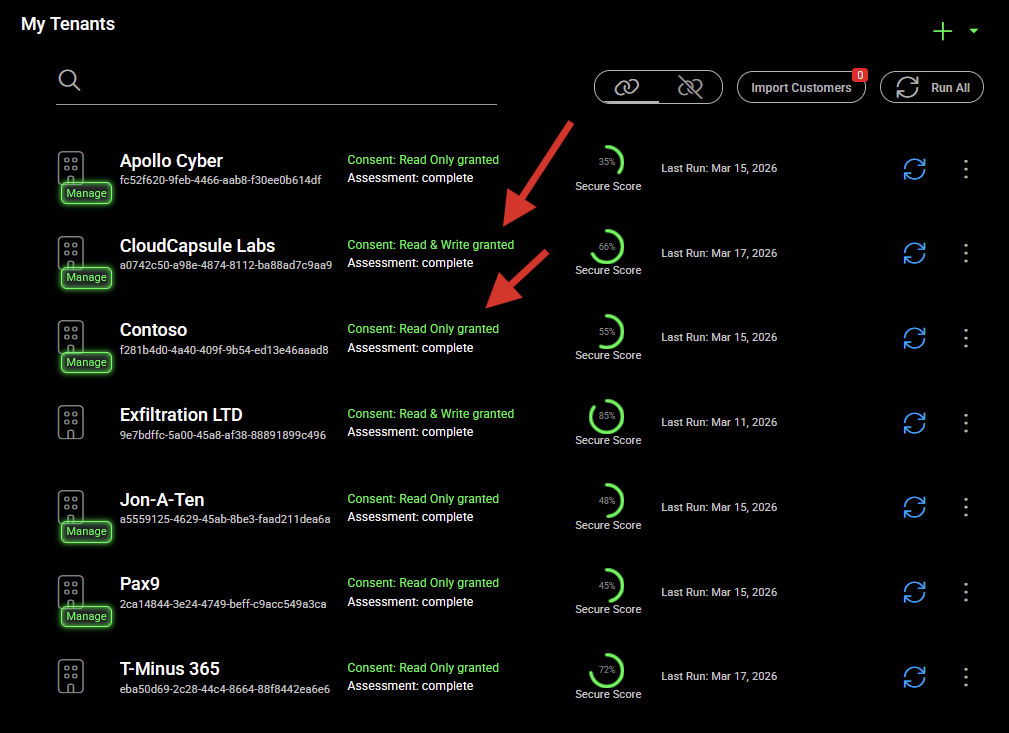
Step 3: Confirm the tenant appears in your portal
- After consent is granted, navigate to Tenants in the left sidebar.
- The new tenant should appear with a consent status of "Read Only granted" or "Read & Write granted."
- Click Refresh or Run All to trigger the initial assessment.
Troubleshooting: Tenant Not Appearing After Consent
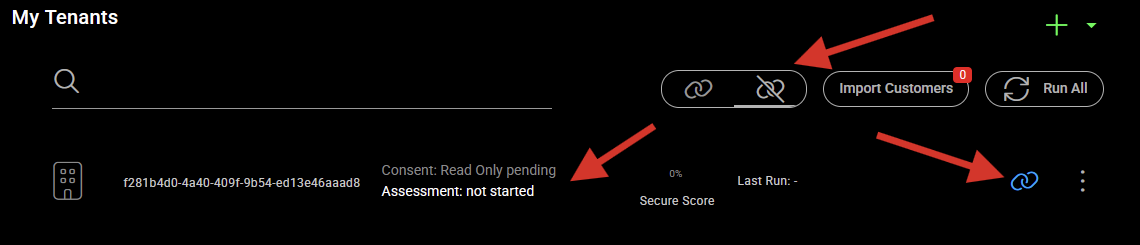
If a tenant does not appear in your tenant list after the customer admin has completed the consent flow, you can check their consent status directly in Cloud Capsule.
Check the Non-Consented Section
Navigate to the Non-Consented section to verify whether consent was successfully granted. Tenants that have completed consent will appear in your main tenant list. Tenants that have not yet granted consent will appear under the Consent Not Granted list.
If the tenant appears under Consent Not Granted, you can resend the consent link by clicking the copy icon next to the tenant and sending the link to the customer admin again. Note that consent links expire after 96 hours, so if the original link has expired, a new one will need to be generated.
Additional Troubleshooting Steps
If the tenant is not appearing and consent does not appear to have been granted, try the following:
- Confirm the admin who completed consent was a Global Administrator or Privileged Role Administrator on the tenant.
- Have the admin try completing the consent flow in a private browser window to ensure the session is not signed in as a different account.
- If the tenant still does not appear, contact support with the tenant domain and the time consent was granted.
Troubleshooting: AADSTS650052 Error
This is the most common error encountered during the consent process. It occurs when the customer tenant is missing the Windows Defender service principal, which Cloud Capsule requires to perform a full assessment.
Error message:
AADSTS650052: The app is trying to access a service 'fc780465-2017-40d4-a0c5-307022471b92' (WindowsDefenderATP) that your organization lacks a service principal for.
Why this happens: The Defender service principal is normally provisioned automatically when a tenant has qualifying licensing. Certain Microsoft 365 license types do not include it, including:
- Exchange Online Plan 1
- Microsoft 365 Business Basic
- Microsoft 365 Business Standard
- Office 365 E3 / E5
Important: If the tenant does not have Entra ID P1 or higher, assessment results in Cloud Capsule will be limited regardless of this fix.
Resolution: Add the Defender service principal via PowerShell
This does not activate or purchase a Defender subscription. It only adds the service principal needed for the consent process to complete.
- Open PowerShell 7 as an administrator.
- Import the Microsoft Graph Applications module:
Import-Module Microsoft.Graph.Applications
- Connect to the customer tenant with the required scope:
Connect-MgGraph -Scopes "Application.ReadWrite.All" -TenantId '<TenantID>'
- Create the Defender service principal:
New-MgServicePrincipal -AppId "fc780465-2017-40d4-a0c5-307022471b92"
- Once the command completes, resend the consent link to the customer admin and have them complete the consent flow again.
Troubleshooting: Permission Errors After Consent
If the tenant appears but shows limited data or permission-related errors, this is typically caused by one of the following:
- The admin who granted consent did not have Global Administrator or Privileged Role Administrator rights, resulting in incomplete permissions being granted.
- The tenant is on a license tier that limits access to certain Microsoft Graph API data (see Microsoft license requirements in the Pricing page under "What Microsoft licenseing is required" section https://www.cloudcapsule.io/pricing#).
To resolve, have a confirmed Global Administrator or Privileged Role Administrator on the tenant re-complete the consent flow using the same link, or generate a new one from the Tenants page.
When to Contact Support
If you have worked through the steps above and are still unable to connect a tenant, please contact support with the following:
- The tenant domain or tenant ID
- The error message displayed during the consent flow, if any
- The Microsoft 365 license type assigned to the tenant
- Whether the issue affects a single tenant or multiple
Email: support@cloudcapsule.io In-app: Navigate to Support and open a new ticket.