
Getting Started
Understanding Assessment Control Statuses and Annotations
This article explains the five assessment control statuses in Cloud Capsule, when and how to override them, and how to use the comment field to document third-party solutions, assumed risks, and review notes.
Understanding Assessment Control Statuses and Annotations
Each control in a Cloud Capsule assessment displays a status that reflects either the result of an automated check or a manual override set by you as the partner. This article explains what each status means, when and how to override a control, and how to use the comment field to document your decisions.
Control Statuses
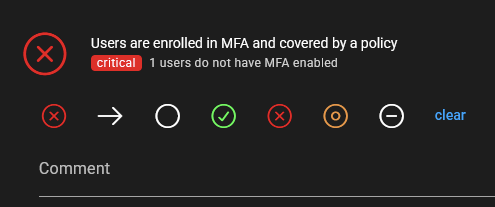
Each control displays one of the following statuses:
| Status | What It Means |
|---|---|
| Not Set | The control requires manual review. Cloud Capsule does not have an API to check this control automatically, so it defaults to Not Set until you assign a status. Partners can also manually set a control to Not Set if needed. |
| Pass | The automated check has confirmed the control is fulfilled. Partners can also override a control to Pass, typically when the client is using a third-party solution that satisfies the requirement but falls outside what Cloud Capsule can detect automatically. |
| Fail | The automated check has determined the control is not fulfilled. Partners can also override a control to Fail if they want to flag it regardless of what the automated check returns. |
| Assumed Risk | The partner has acknowledged that the control is failing but has accepted the risk on behalf of the client due to unique business needs. The control will continue to show as failing but is marked as a conscious decision rather than an oversight. |
| N/A | The control is not applicable to this client or environment. This is typically used when a control relates to an area of compliance or technology that the client does not operate in or use. |
Automated Checks vs. Manual Controls
Cloud Capsule automatically checks controls where a Microsoft API is available to retrieve the relevant data. The result of these checks is applied immediately when an assessment runs and will show as Pass or Fail based on what is found in the tenant.
For controls where no API is available, Cloud Capsule cannot determine the result automatically. These controls default to Not Set and are labeled Manual in the assessment. It is the partner's responsibility to review these controls, verify the current state with the client, and assign the appropriate status.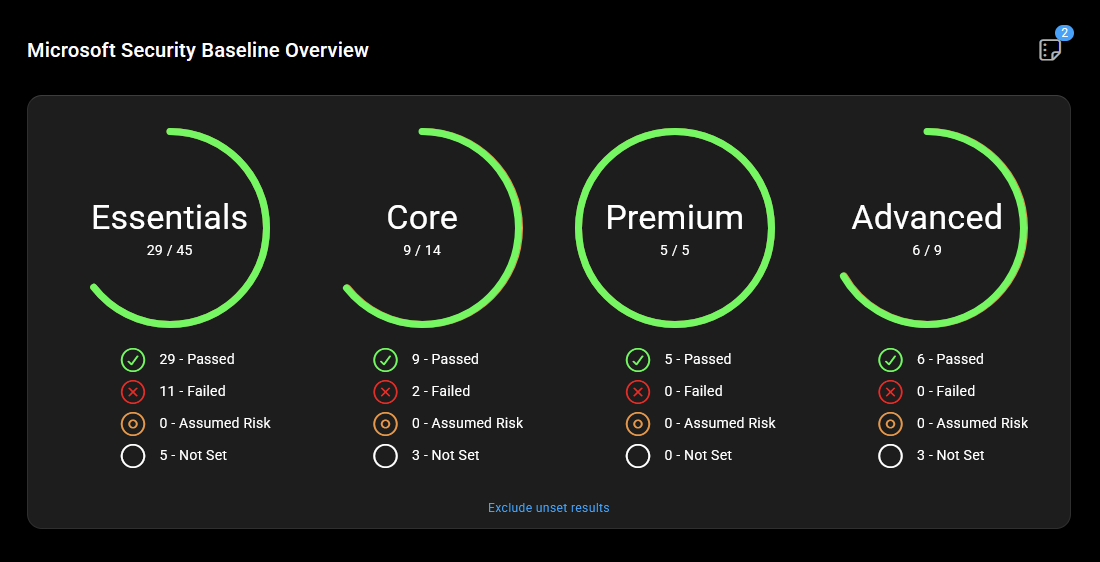
Overriding a Control Status
Any control status can be manually overridden by selecting a different status from the annotation row within the control detail panel. Common reasons to override a control include:
- The client is using a third-party solution that satisfies the requirement but is not detected by Cloud Capsule's automated check. In this case, set the status to Pass and document the solution in the comment field.
- The client has a business reason for not meeting a control and has accepted the risk. In this case, set the status to Assumed Risk.
- A control does not apply to the client's environment or industry. In this case, set the status to N/A.
Note: Overriding a control status updates the overall assessment score displayed in Cloud Capsule. It does not affect the client's Microsoft Secure Score, which is calculated independently by Microsoft based on tenant configuration.
Using the Comment Field
Each control includes a Comment field where you can add notes to document the context behind a status. Comments are visible to anyone with access to the assessment and serve as a record of decisions made during the review.
Common uses for the comment field include:
- Documenting the name of a third-party solution being used to satisfy a control when overriding to Pass. For example: "Client is using CrowdStrike for endpoint detection. Control overridden to Pass."
- Explaining the business reason behind an Assumed Risk or N/A status.
- Recording notes from a client conversation relevant to the control.
- Flagging a control for follow-up at the next review.
When to Contact Support
If a control is showing an unexpected status, not updating after an assessment run, or you have questions about how a specific control is being evaluated, please contact support with the following:
- The name of the affected tenant
- The control name and section it appears in
- A screenshot of the current control status
- A description of what you expected to see
Email: support@cloudcapsule.io
In-app: Navigate to Support and open a new ticket.